
Megick · June 16, 2026 · 8 min read
Free AI Photo Enhancer - Improve Picture Quality Online with Megick
Free AI Photo Enhancer: Improve Picture Quality Online with Megick
A photo can be well composed and still fall flat because the file is too soft, too compressed, too noisy, or simply too small for the screen it ends up on.
That happens constantly. A product image gets saved from a chat app. A portrait has been copied and reposted too many times. An old photo looks fine on a phone, then falls apart the moment you place it in a presentation, storefront, or 4K display.
Megick gives you a straightforward way to improve picture quality online without opening a complicated editing suite. Upload the image, decide what needs fixing, and let AI work on clarity, texture, resolution, and visible artifacts while keeping the original image recognizable.
For anyone looking for a Free AI Photo Enhancer - Improve Picture Quality Online workflow, Megick is built around the practical part of the job: cleaning up weak images, upscaling them toward 4K, and preserving the details that made the photo worth using in the first place.
What does an AI photo enhancer actually do?
An AI photo enhancer does more than apply sharpening across every pixel.
Modern image models can identify the structure of an image: facial features, object edges, fabric, lighting changes, skin texture, product surfaces, and background separation. That matters because a low-quality image usually does not fail in one obvious way. It may have soft edges, blocky compression, muddy shadows, damaged fine details, or all of those problems at once.
With Megick, you can use AI enhancement to:
- Upscale low-resolution photos into cleaner HD or 4K-ready images.
- Reduce blur, noise, and compression artifacts from screenshots, social uploads, or old files.
- Recover visible detail in hair, skin, clothing, food, products, and backgrounds.
- Improve perceived clarity without pushing the image into an overly sharp, artificial look.
- Prepare images for websites, ecommerce listings, portfolios, posters, decks, and social media.
The goal is not to turn every image into something glossy and overprocessed. A good enhancement should still feel like the same photo—just clearer, more usable, and less limited by the original file.
Why use Megick to improve picture quality?
There are plenty of tools that can make an image bigger. That is not always the same thing as making it better.
Megick is designed around creative production rather than a one-off export. You can enhance an image, create new variations from it, and keep related visual assets in the same workflow. For creators, store owners, marketers, and designers, that is often more useful than bouncing between separate desktop tools just to fix one image.
Megick is especially useful when you need to:
- Turn a small image into something suitable for a larger screen or layout.
- Clean up product materials before publishing them online.
- Improve profile photos, creator headshots, thumbnails, and portfolio images.
- Repair images that were compressed by chat apps, social platforms, or websites.
- Create sharper source material before moving into AI design, video, or marketing work.
You still get control over the intended look, but without spending time on manual masking, layers, filter stacks, or endless adjustment panels.

Enhance photos up to 4K without losing the details that matter
Older upscaling tools had a familiar problem: the file became larger, but the image did not really improve.
Faces could turn waxy. Fabric lost its texture. Edges became crunchy and unnatural. A photo might technically be 4K, yet still look strange when you zoomed in.
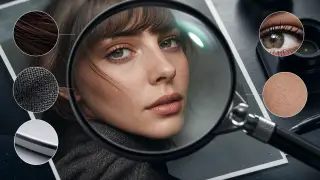
Megick takes a quality-first approach. When you upscale an image toward 4K, the focus is not just on adding pixels. It is on keeping the visual cues people notice immediately:
- Natural facial structure and believable skin texture.
- Fine hair strands and softer edge transitions.
- Product labels, packaging lines, materials, and surface details.
- Clothing patterns, jewelry, furniture, food, and environmental textures.
- Balanced lighting, realistic contrast, and stable color depth.
That makes the result easier to reuse across high-resolution displays, ecommerce galleries, thumbnails, creative decks, social posts, and print-oriented layouts.
How to improve picture quality online with Megick
The workflow is simple. You do not need to treat it like a full retouching project.
- Open Megick and enter the image creation or image editing workspace.
- Upload the photo you want to improve.
- Choose an enhancement or editing mode that matches the result you need.
- Describe the target clearly, for example: “enhance to 4K, improve clarity, preserve natural details, remove compression artifacts.”
- Generate the enhanced version and compare it with the original.
- Keep the version that has the best balance of sharpness, texture, and realism.
Start with the best source file you can find. AI can recover and rebuild a surprising amount, but it still has more to work with when the original has not been heavily compressed, cropped, or repeatedly exported.
Suggested prompts for AI photo enhancement
Megick works best when you tell it what should improve and what must stay untouched.
General 4K enhancement
Enhance this image to 4K quality. Improve sharpness, restore fine details, reduce noise and compression artifacts, keep the original composition and natural colors.
Portrait enhancement
Improve this portrait photo quality. Enhance facial clarity, preserve natural skin texture, restore hair detail, reduce blur, keep the person recognizable and realistic.
Product photo enhancement
Enhance this product image for ecommerce. Improve clarity, restore label and material details, keep accurate colors, clean up compression artifacts, output a crisp high-resolution image.
Old photo restoration
Restore and enhance this old photo. Reduce noise and blur, improve contrast, recover fine details, keep the original mood and avoid over-smoothing.
The wording matters more than people expect.
When a result looks too sharp, ask for a softer and more natural finish. When it looks too smooth, ask for more visible texture, material detail, and realistic skin or fabric grain. Small adjustments can move the output from “obviously enhanced” to something that simply looks like a better source photo.
The kinds of images that benefit most from enhancement
Almost any image can be improved, but some types of files benefit more than others.
Ecommerce and product images
Clear product images make a difference before anyone reads the description. Better detail helps people inspect labels, materials, edges, textures, and colors with more confidence.
This is especially useful for online stores, marketplace listings, catalogs, comparison graphics, and ad creatives where the original image may be too small or too compressed to carry the job.
Social media and creator images
Creators constantly reuse images across profile photos, thumbnails, banners, posts, channel covers, and short-form video assets. A photo that looked acceptable in a small feed can look weak once it is expanded for a larger cover or campaign visual.
Megick can help clean up those lower-resolution assets before they become part of a public-facing post.
Marketing and design materials
Landing pages, pitch decks, posters, campaign visuals, and print layouts often demand larger images than the original file can support. Upscaling toward 4K gives a strong image more room to travel across formats without making pixelation the first thing people notice.
Old photos and personal archives
Old digital photos, scans, chat-app images, and early phone-camera files often carry blur, noise, fading, or low-resolution limits. Enhancement can make them easier to view, share, preserve, or include in a newer design project without stripping away their original mood.
Tips for cleaner 4K enhancement results
A few practical habits usually lead to better output:
- Use the original file whenever possible instead of a screenshot.
- Avoid images that have already been heavily sharpened or filtered.
- Tell the AI what matters most: face identity, readable product text, fabric texture, natural color, or background detail.
- Ask for realistic enhancement instead of extreme beautification when accuracy matters.
- Compare results at full size rather than relying only on the preview window.
- Generate more than one version for important images. The best result is not always the first one.
The strongest enhancement is often the one you barely notice at first. It should look sharper when you compare it with the original, not like a completely different image after the fact.
Free AI Photo Enhancer: improve picture quality online without the usual friction
Most people do not want to learn advanced retouching software just to rescue a photo that is a little too soft or too small.
Megick makes AI photo enhancement more accessible for everyday creative work. Whether you are cleaning up a product image, preparing a social post, improving a portrait, restoring an old photo, or building sharper source material for a larger campaign, you can improve the image without turning the process into a technical project.
Use Megick when you need a free AI photo enhancer that can upscale images toward 4K, preserve important visual details, and keep the original photo looking natural instead of overworked.
Start enhancing images with Megick
Try it with one image first.
Upload a low-resolution photo, ask for a 4K enhancement, then compare the result with the original at full size. In many cases, the difference is immediately useful: cleaner edges, stronger texture, less visible compression, and an image that holds up much better on modern screens.
When a photo needs to look sharper, larger, and more usable without losing what made it feel real, Megick offers a fast way to improve picture quality online.