Camera shake recovery
Improve images where handheld motion made the result too soft.
Reduce blur from photos, product shots, screenshots, and creative assets so they can be reused in campaigns and content.

Overview
Start from a focused image goal, then continue in the studio when you are ready to create the finished result.
Use unblur when an important image is too soft, shaky, or blurred to reuse confidently.
Megick treats deblurring as part of image production, so you can continue into enhancement, upscaling, cleanup, or generation without switching tools.
Why use it
Practical ways to use this tool across product images, content, campaigns, and creative review.
Improve images where handheld motion made the result too soft.
Recover edge clarity in catalog, marketplace, and ad product images.
Rescue useful images from older folders before replacing them entirely.
Results
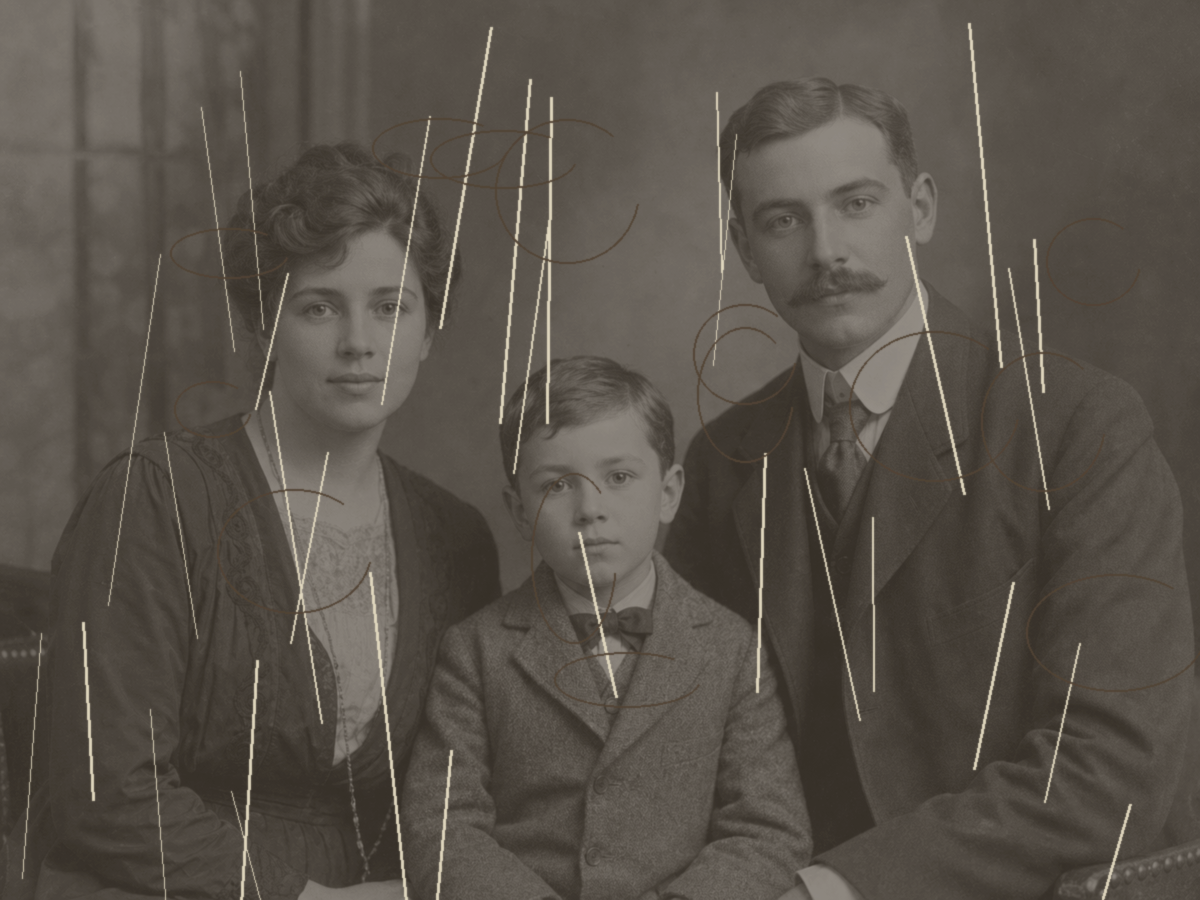
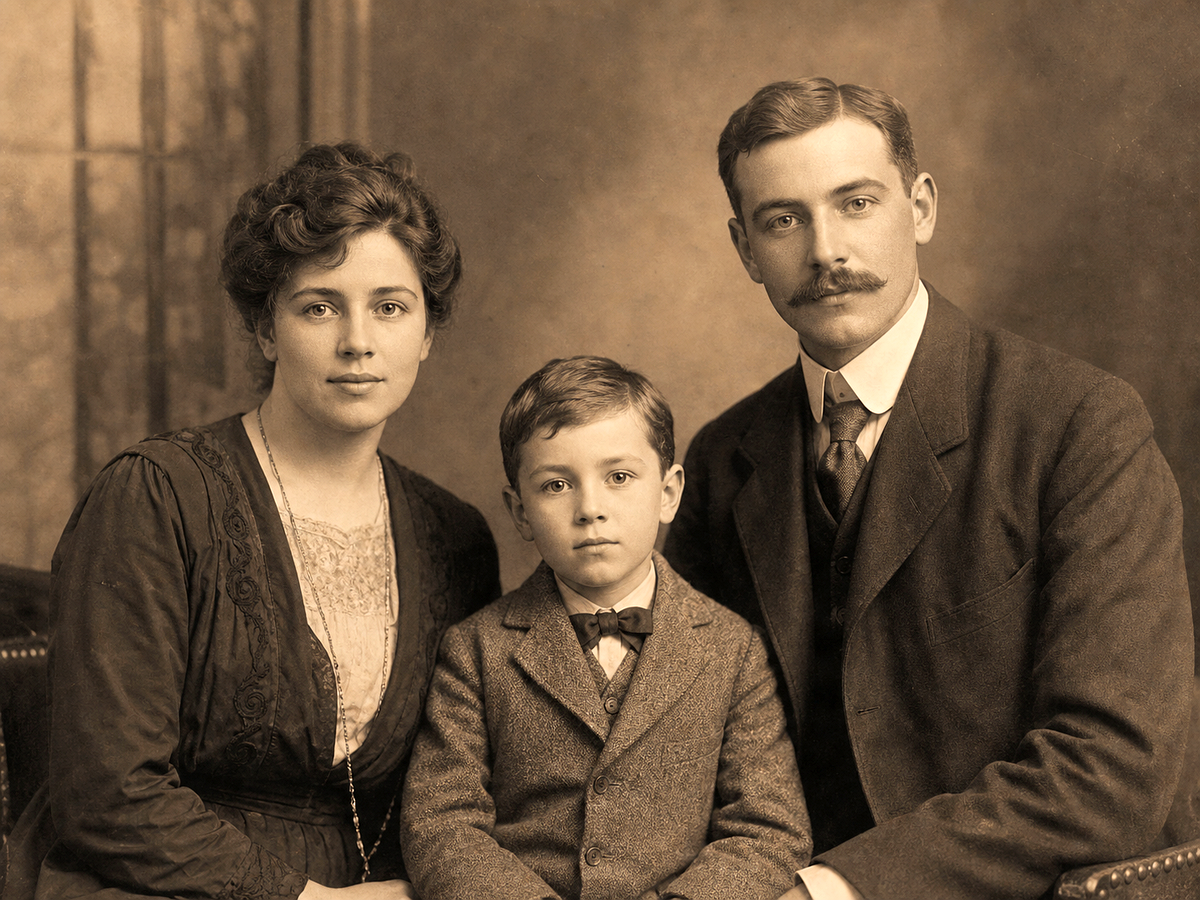
Compare the original image with the edited result. Move the handle to inspect edges, texture, lighting, and subject detail.



Create
Use the button when you are ready to work with prompts, references, variants, and follow-up edits in one workspace.
Continue in image studioStart from the image workspace with the blurred photo or asset.
Mention soft focus, motion blur, camera shake, or low-detail edges.
Check faces, text, and fine lines to avoid over-sharpened results.
Improvements
A quick view of the practical image improvements this tool is best suited to handle.
Feedback
The comparison view makes it easier to spot whether details stayed natural.
Having related image tools close by keeps cleanup, enhancement, and export decisions in one workflow.
The studio path is direct: open the image, describe the edit, compare, then keep the best result.
Related tools
Move between connected image tasks without losing your place.
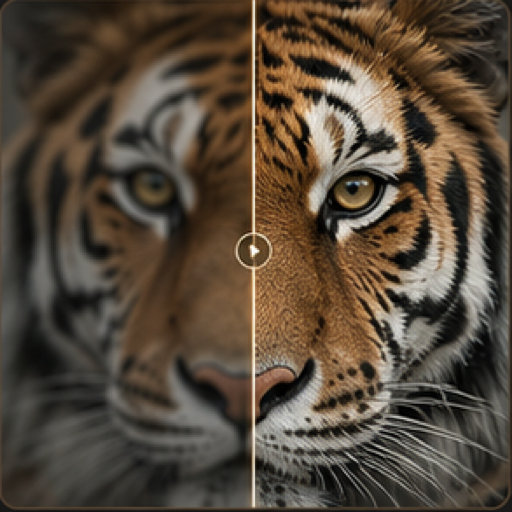
Add crispness to edges, subjects, and product details without rebuilding the image.
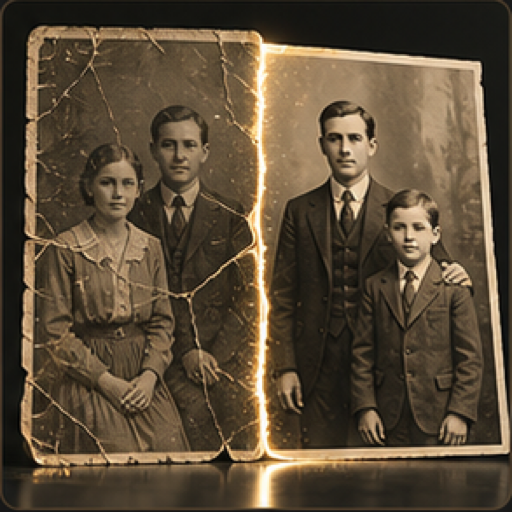
Repair aged, faded, scratched, or damaged photos with guided AI editing.
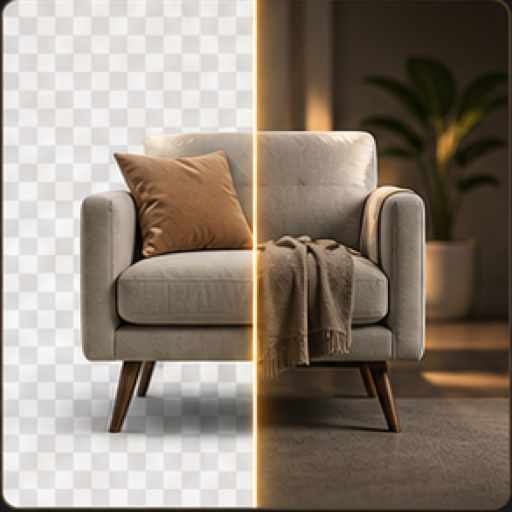
Remove or replace backgrounds for products, portraits, and marketing compositions.
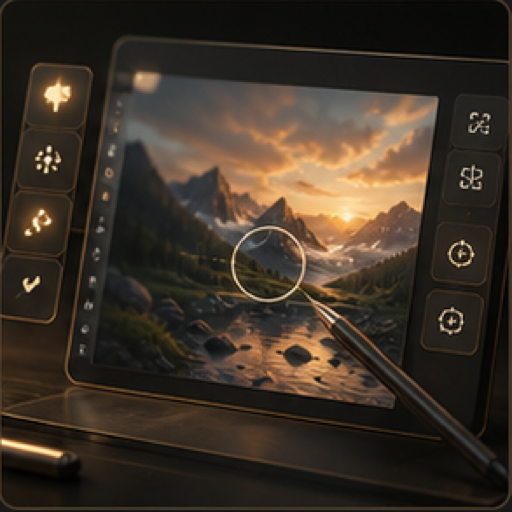
Edit, restyle, refine, and prepare image assets in one focused workspace.
FAQ
No. AI can improve many soft images, but extremely blurred or missing detail may not be fully recoverable.
Images with visible structure, moderate blur, and clear subjects usually produce stronger results than heavily smeared images.
They are related, but unblur focuses on repairing blur while sharpen focuses on edge clarity and crispness.
Open Megick and describe the kind of blur you want to reduce.
Continue to Megick to create, edit, compare, and save the finished image.