Marketing asset refinement
Adjust visuals until they fit a campaign, product page, email, or social post.
Edit, enhance, generate variants, clean backgrounds, and prepare assets for publishing from a single creative studio.
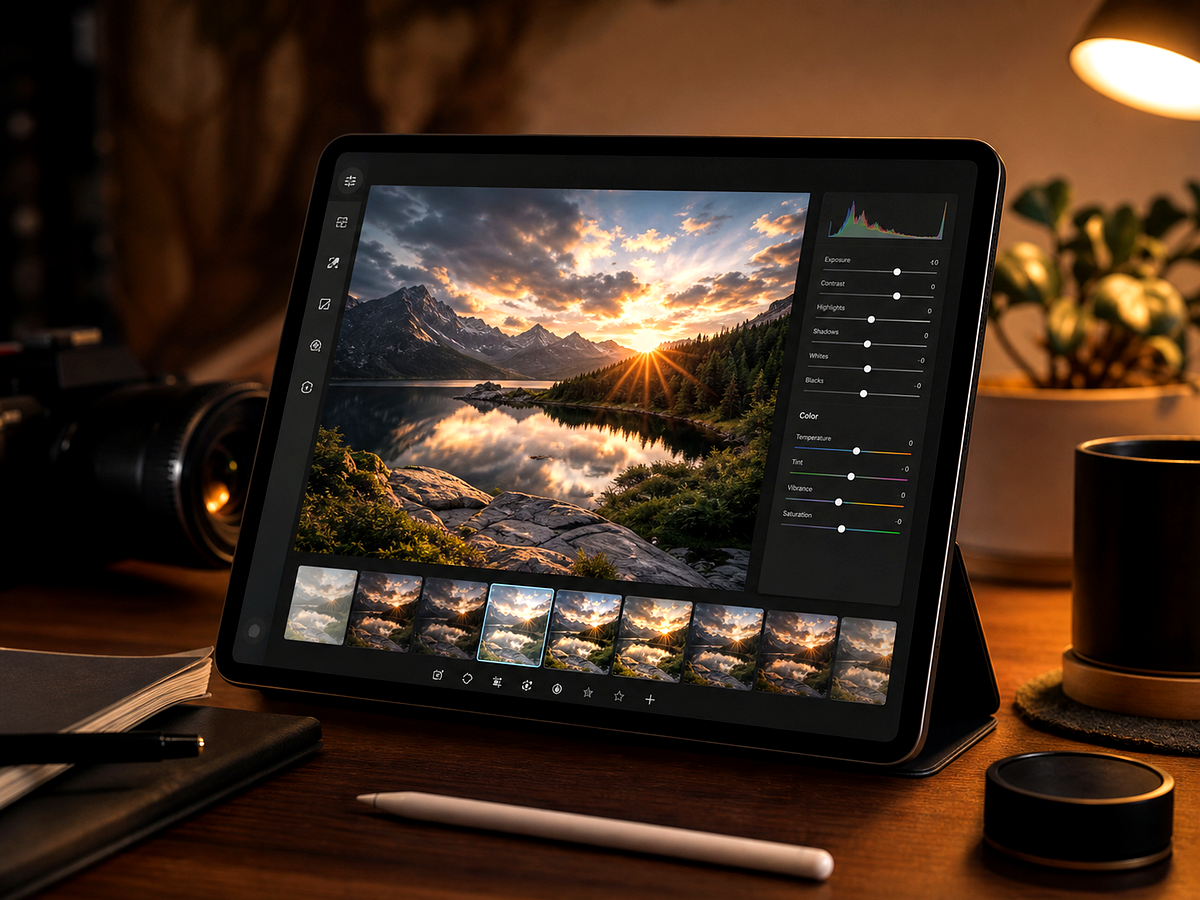
Overview
Start from a focused image goal, then continue in the studio when you are ready to create the finished result.
Use the AI photo editor when you know the image needs work but the exact fix may involve enhancement, cleanup, generation, background changes, or restoration.
Megick brings those specialized tasks into one prompt-friendly workspace so creative teams can refine images without scattering the process across separate tools.
Why use it
Practical ways to use this tool across product images, content, campaigns, and creative review.
Adjust visuals until they fit a campaign, product page, email, or social post.
Create multiple directions from one image or prompt and compare results quickly.
Refresh, clean, and standardize images across blog, product, and brand libraries.
Results
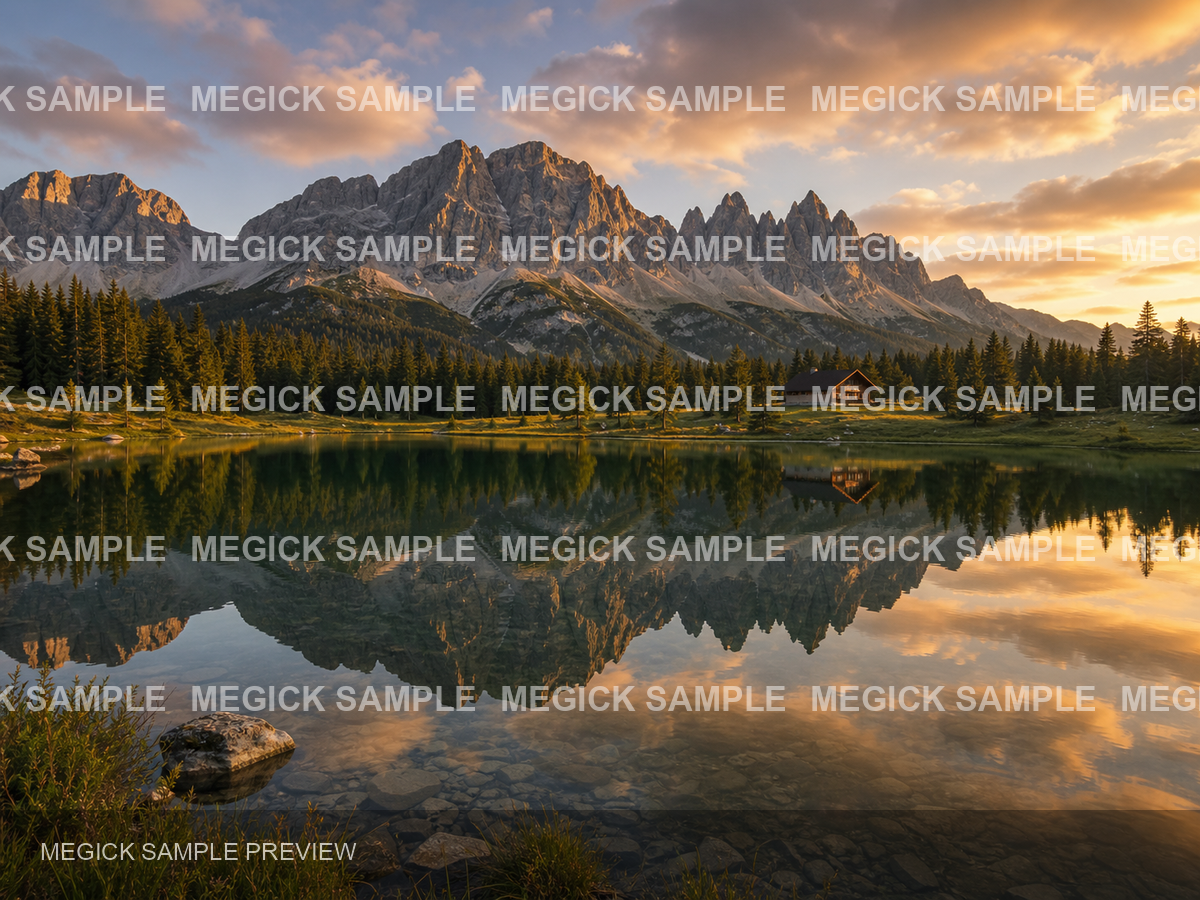
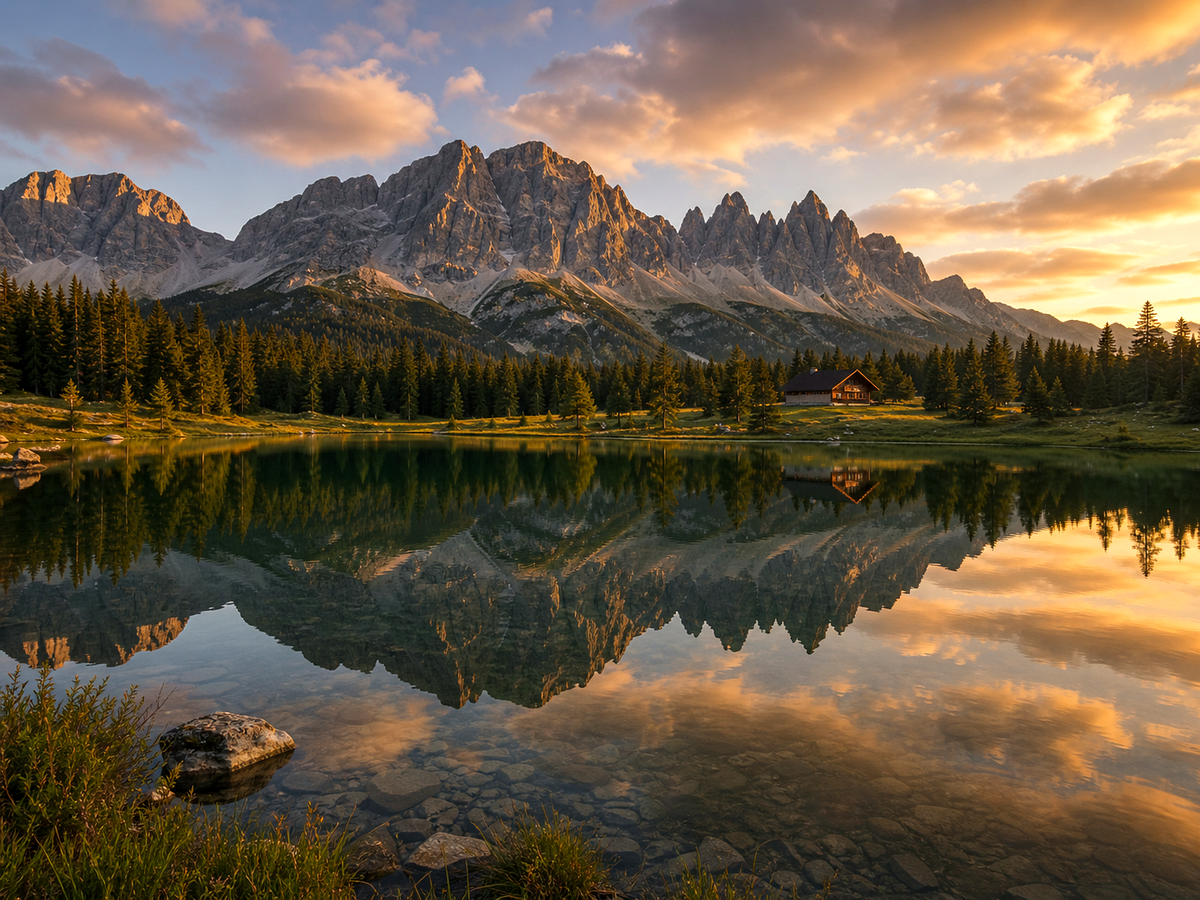
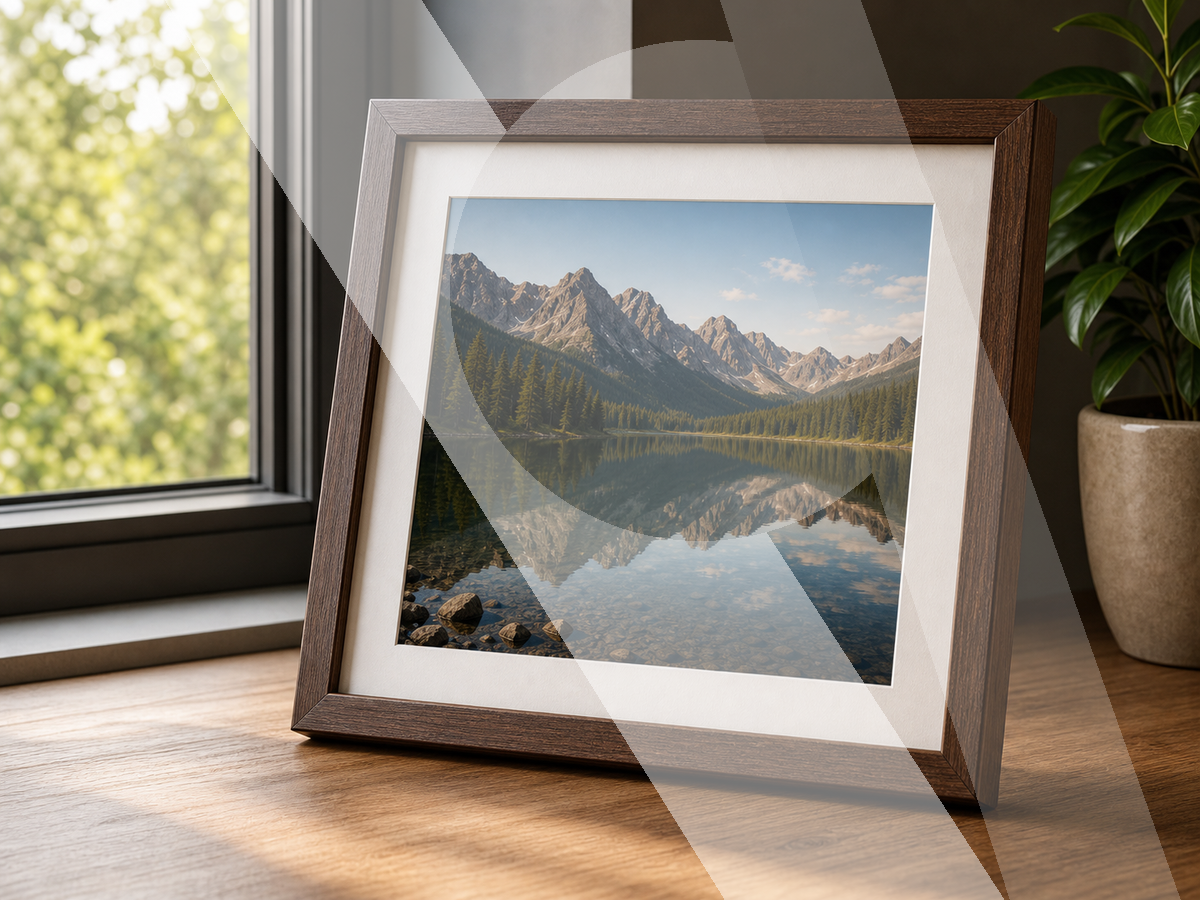
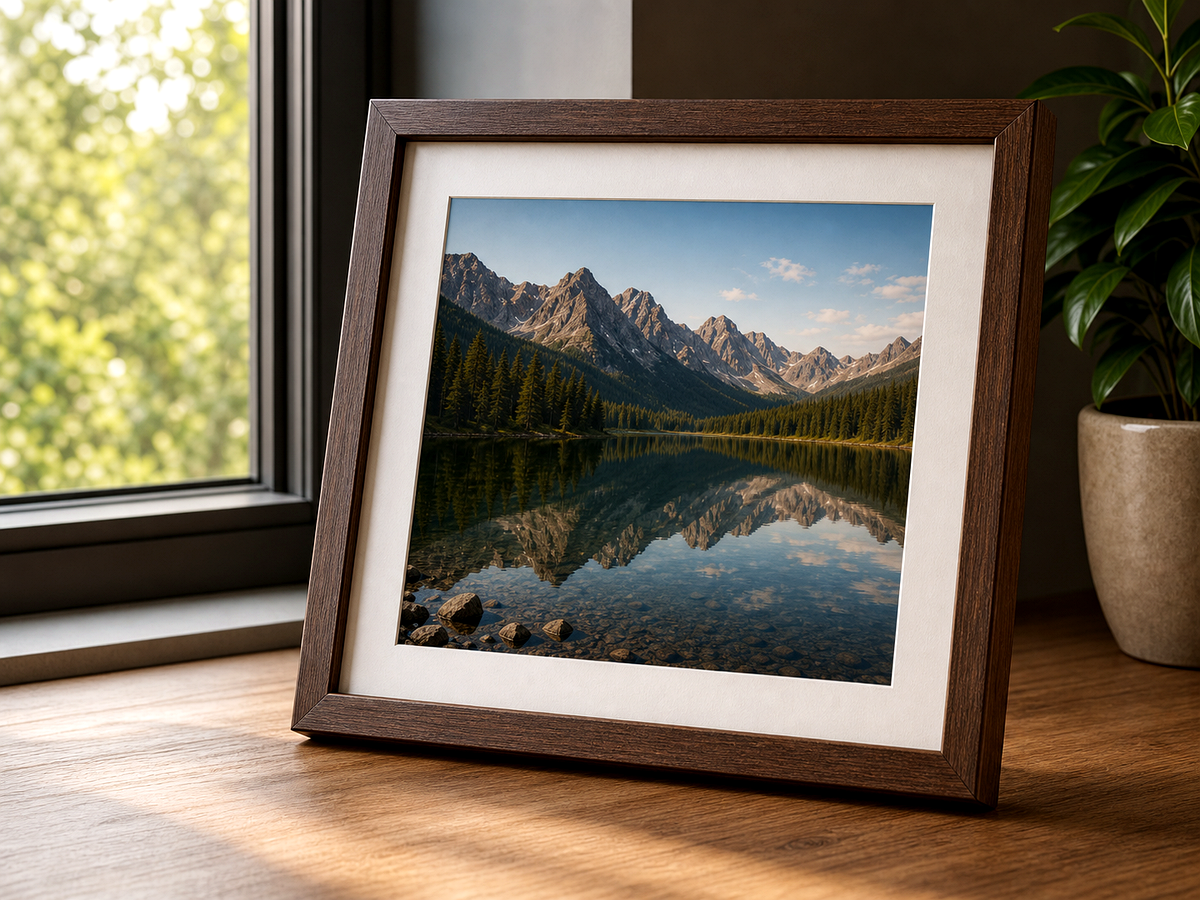
Compare the original image with the edited result. Move the handle to inspect edges, texture, lighting, and subject detail.


Create
Use the button when you are ready to work with prompts, references, variants, and follow-up edits in one workspace.
Continue in image studioOpen the image workspace with the asset, prompt, or visual direction you want to refine.
Describe enhancement, cleanup, replacement, generation, restoration, or upscaling.
Use variants and references so edits match the final channel and brand direction.
Improvements
A quick view of the practical image improvements this tool is best suited to handle.
Feedback
The comparison view makes it easier to spot whether details stayed natural.
Having related image tools close by keeps cleanup, enhancement, and export decisions in one workflow.
The studio path is direct: open the image, describe the edit, compare, then keep the best result.
Related tools
Move between connected image tasks without losing your place.

Improve readability in screenshots, scanned pages, labels, and text-heavy images.
Clean owned images by removing internal draft marks, layout notes, or authorized overlays.
Reduce reflections, shine, harsh highlights, and glass glare in photos.

Add believable color to black-and-white portraits, archives, and vintage photos.
FAQ
It can help enhance images, generate variants, replace or remove backgrounds, restore details, and prepare assets for publishing.
Yes. The editor opens in Megick so generation, cleanup, enhancement, and saved outputs stay together.
Yes. Product photos can benefit from cleanup, background replacement, enhancement, and campaign-style variants.
Yes. Use prompts and references to explore styles, scenes, and polished variants for creative review.
Continue to Megick to create, edit, compare, and save the finished image.